![4ca80f9a-2071-a148-302f-31ff88cc96f8.png]](https://support.principlesus.com/hs-fs/hubfs/Design%20Assets/Logos/4ca80f9a-2071-a148-302f-31ff88cc96f8.png?width=350&height=37&name=4ca80f9a-2071-a148-302f-31ff88cc96f8.png)
User Product Access
If this is your first purchase, the products you buy will be set as the default for all users you invite to your account. This means each invited person will automatically consume a license based on the products included in your purchase.
For example, if you purchase the bundled PrinciplesUs and 5Cs plan, every invited user will automatically use one PrinciplesUs license and one 5Cs license.
|
Purchased plans |
Default product access on invite |
|
PrinciplesUs only |
User |
|
5Cs only |
Survey Participant |
|
PrinciplesUs and 5Cs bundled or multiple products with equal counts |
User and Survey Participant |
|
PrinciplesUs and 5Cs bundled or multiple products with different counts |
No default, licenses must be assigned manually. |
Granting User(s) access to a Product via Group assignment
In the case of PrinciplesUs and 5Cs bundled, or other multi-plan purchases with different counts, there is no default assignment. Licenses must be assigned manually.
To ensure new or existing users receive appropriate product access, an Administrator or User Administrator must create or update a group and grant product access accordingly.
You will need to Create a Group, Add Users to that Group, and then Provision Product Access.
Continue reading for more details on creating a group and granting product access.
Creating a Group
- Navigate to the Administration section of the application and select the ‘Groups’ tab.
- Select the ‘Create a Group’ button.

- Create a name for your group e.g., PrinciplesUs Personality Assessment Users.
- Save the group.
Adding users to a Group
If you are not within the group, navigate back to the 'Groups' tab and select the edit icon next to the appropriate group.
If the users do not exist in the account:
- Once in the group, select the ‘add users’ button at the bottom left of the group pop-up
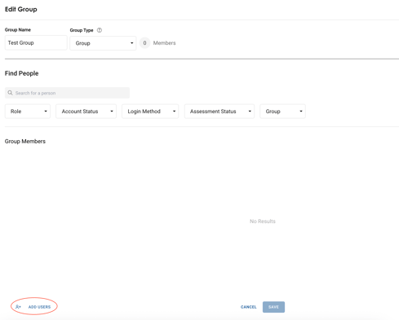
- This will open a window that allows you to either add each person individually or in bulk.
- To add an individual user, enter the user's first and last names and their email addresses.
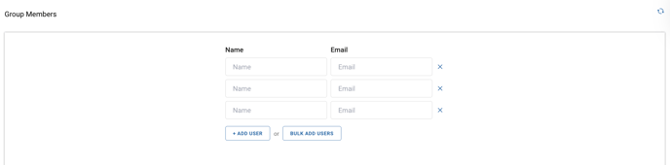
- You can add multiple users by selecting the 'Bulk Add Users' option.
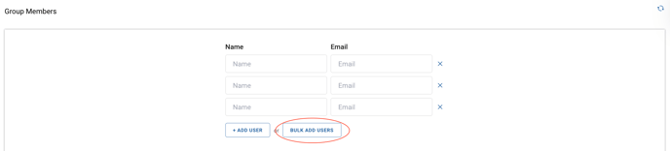
- You can enter or paste users into this field directly. Alternatively, you can upload a CSV file by clicking the Upload CSV button or dropping it into the field below.
- Once the users are entered, you will first need to select the ‘add’ button.
Please note, this will not send them any communications yet.
- Once all of the users you wish to add to the system are in the Name and Email columns on this page, you can then select the 'Add Users' button.
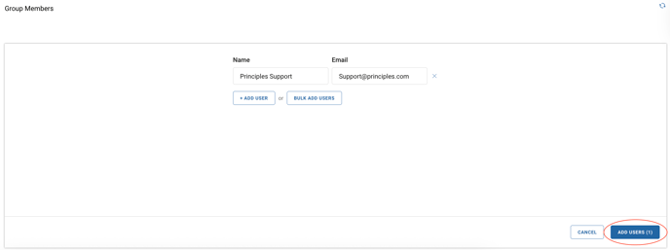
If your account is set up with SSO login: doing so will NOT send them an invitation to complete their account set up.
If your account is set up with Email/Password login: doing so WILL send them an invitation to complete their account set up, which is optional to complete prior to a culture survey being launched. However, you may want to add users and ask them to set up their account if you would like them to complete the PrinciplesUs Personality Assessment first, or to grant them an elevated level of access (i.e., Administrator, User Administrator or Culture Survey Manager).
If the users exist in the account already:
- Find users by either searching for their name using the search bar or by using the filters available.
- Add people in bulk by selecting the checkboxes next to each person’s name and selecting ’Add [X] Members’
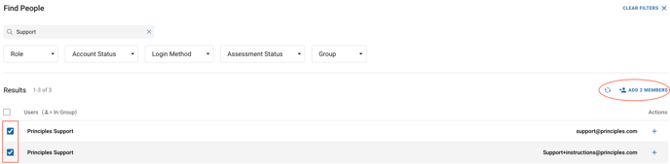
- Add people individually by selecting the plus ‘+’ sign on the right-hand side of the page in-line with that person’s name.
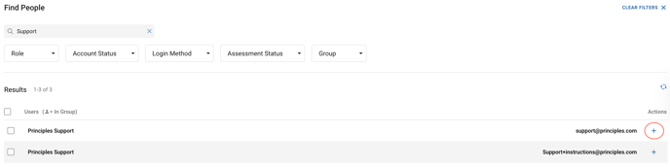
- To successfully create a group and add users, you must select the save button. Simply selecting the ‘Add Members’ button or the ‘+’ sign will not save a group or any edits made, and any unsaved changes will be lost.
- After saving a group and the filters and/or search bar is cleared, you will see all users you have added listed under the ‘Group Members’ section.
Seeing the person icon next to a user's name indicates that they are already a part of the group that you are creating, and there is no need to add them again.
Removing Users from a Group
- Find the group you would like to edit and select the edit ‘pencil' icon.

- Once selected, you will see all members of the group listed under ‘Group Members.’
- To remove a user(s) from the selected group, you can either:
- Remove people in bulk by selecting the checkboxes next to each person’s name and selecting ’Remove [X] Members.’
- Remove people individually by selecting the minus ‘-’ sign on the right-hand side of the page in-line with that person’s name.
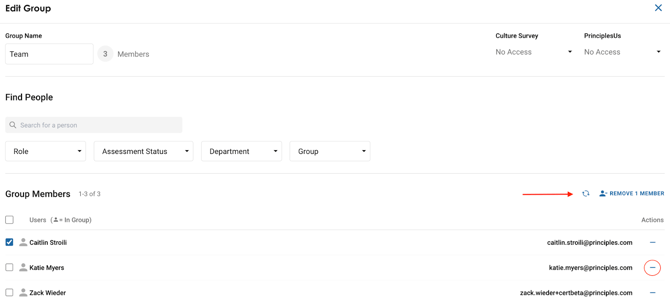
Select save to ensure your edits are not lost before exiting the page.
Granting Product Access
Access to products is granted by assigning access to an existing and/or newly created group by following the steps below:
- Navigate to the Administration section of the application and select the ‘Groups’ tab.
- Find the group and associated group members that you would like to grant product access to.
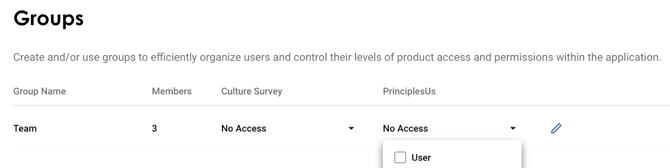
- Grant or manage product access by selecting the dropdown under the column of the product you would like to assign.
- Culture Survey:
- Survey Manager: Can create and launch surveys, view completion statistics, and manage access to the survey report results.
- Survey Participant: Can be invited to participate in a Culture Survey.
- PrinciplesUs:
- User: Can access the Principles Personality Assessment and related features.
- Culture Survey: